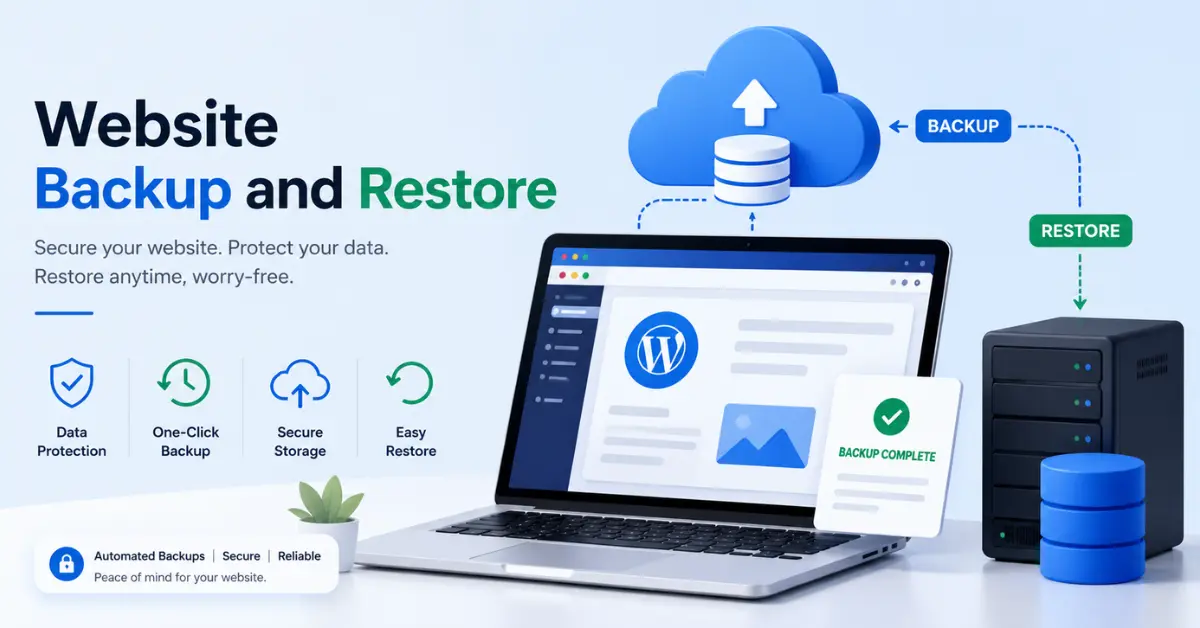
You built your website with time, money, and energy. One bad plugin update, one server failure, or one security breach can wipe it out in seconds.
That’s not dramatic — it happens every single day.
This guide gives you everything you need: what website backup and restore actually means, which methods work best for your site type, how to restore quickly when disaster strikes, and the critical steps your competitors never tell you about.
Let’s get into it.
What Is a Website Backup?
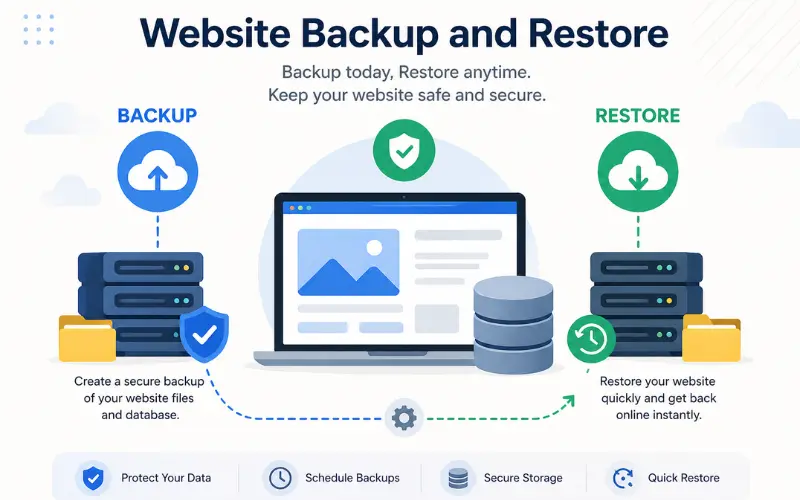
A website backup is a saved copy of your entire website stored separately from your live server. If something goes wrong — a hack, a failed update, or accidental deletion — you use the backup to bring your site back exactly as it was.
A complete website backup has two distinct parts:
- Website files — Your themes, plugins, uploaded images, configuration files (like wp-config.php), and all core application files.
- Database — The structured data stored in MySQL or MariaDB: your posts, pages, products, customer orders, user accounts, and settings.
Why You Need Both — and Why This Matters
Here’s something most guides miss: your files and database are stored in two completely separate places on your server.
Downloading your site’s folder does NOT capture the database. You must back up each one independently. Restoring only the files without the database gives you a broken, empty shell of a website — no content, no orders, no users.
Always back up both. Always.
Why Website Backups Are Non-Negotiable
Most website owners treat backups as optional — until they experience data loss firsthand. These numbers show why waiting is a dangerous gamble:
- Downtime costs businesses an average of $1,410 per minute.
- 60% of small businesses that suffer severe data loss close within 6 months.
- 1 in 5 small businesses cannot survive a data breach.
- A cyberattack hits a business somewhere every 39 seconds.
Your website can be damaged or destroyed by:
- Malware and hacking — Injected code, backdoors, and ransomware can make manual cleanup nearly impossible. A clean restore is almost always faster and safer.
- Plugin or theme conflicts — A single bad update can trigger the dreaded “white screen of death” or break your entire site instantly.
- Human error — Accidentally deleting a database table, overwriting the wrong file, or publishing the wrong version happens more than anyone likes to admit.
- Hosting failures — Servers crash. Hosting companies suspend accounts. Even reputable providers experience outages that take customer data with them.
- Database corruption — An unexpected server crash can corrupt your database tables, making your site inaccessible with no visible cause.
A backup does not prevent any of these events. It makes them survivable.
The 4 Types of Website Backups (And Which One You Actually Need)
Almost no competitor explains this — but understanding backup types helps you balance storage costs, backup speed, and restore time.
Full Backup
A complete snapshot of every file and database record at one point in time. It’s the slowest to create and uses the most storage, but the simplest to restore from because everything is in one place.
Use it for: Weekly or monthly snapshots; always before a major update or site migration.
Incremental Backup
Only saves what has changed since the last backup of any kind. Fast, lightweight, and storage-efficient — but restoring requires the original full backup plus every incremental backup in sequence.
Use it for: Daily automated backups on active sites where storage matters.
Differential Backup
Saves everything that has changed since the last full backup (not since the last backup of any kind). Faster to restore than incremental, but uses more storage than incremental.
Use it for: Sites that need faster restore times without running a full backup daily.
On-Demand (Manual) Backup
A backup you trigger yourself, right before you do something risky — a plugin update, a redesign, or a server migration.
Use it for: Always run one immediately before making any significant change to your site.
How Often Should You Back Up Your Website?
Backup frequency should match how often your site changes — and how much data loss you can afford.
Website Backup Frequency Table
| Site Type | Recommended Backup Frequency |
|---|---|
| Personal blog, rarely updated | Weekly |
| Business website, regular updates | Daily |
| eCommerce store (live orders/products) | Multiple times per day |
| News site or high-traffic content site | Hourly or real-time |
| Before any significant update | Immediately (on-demand) |
Ask yourself this: “How much data can I afford to lose?” If losing one day of orders would seriously hurt your business, you need daily or more frequent backups. If you run a personal blog you update once a week, weekly is fine.
The 3-2-1 Backup Rule: The Gold Standard of Data Protection
This is the single most important principle in backup strategy — and almost no website guide explains it properly.
The 3-2-1 rule:
- Keep 3 copies of your data
- Store them on 2 different types of storage media
- Keep 1 copy completely off-site
What this looks like for a website:
1. One backup stored in your hosting account or server
2. One backup on cloud storage (Google Drive, Dropbox, Amazon S3)
3. One backup downloaded to your local computer or an external hard drive
Why this matters: If your server crashes and your only backup was stored on the same server, both disappear simultaneously. Off-site copies guarantee you always have a clean version to recover from — even if your hosting provider goes dark entirely.
4 Ways to Back Up Your Website
Through Your Hosting Control Panel (cPanel or Plesk)
Most shared hosting providers include a built-in backup tool. This is the simplest starting point for beginners.
How to create a full backup in cPanel:
1. Log in to your cPanel account.
2. Go to the Files section and click Backup.
3. Under Full Backup, click Download a Full Account Backup.
4. Select Home Directory as the backup destination.
5. Enter your email address to receive a notification when the backup is ready.
6. Click Generate Backup.
7. Once complete, download the .tar.gz file via cPanel, FTP, or SSH.
Important limitation: Many shared hosting plans cap cPanel backups at 10 GB. If your site is larger than that, you’ll need a different method or must contact your host directly for assistance.
Using a WordPress Backup Plugin (Recommended for WordPress Sites)
For WordPress sites, a dedicated plugin is the most practical, reliable, and flexible backup solution available. Popular options include UpdraftPlus, All-in-One WP Migration, BackWPup, and Duplicator.
How to back up with UpdraftPlus:
1. Install and activate UpdraftPlus from the WordPress plugin directory.
2. Go to Settings → UpdraftPlus Backups.
3. Set a backup schedule for both your files and database independently.
4. Choose a remote storage destination: Google Drive, Dropbox, Amazon S3, or others.
5. Click Backup Now for an immediate manual backup.
Pro tip: Always back up your database before your files. This keeps both snapshots aligned in time and prevents version mismatches when you restore.
Via FTP/SFTP and phpMyAdmin (Manual Method)
This approach gives you direct control over exactly what gets saved and where. It’s time-consuming but completely free.
Back up your files:
1. Open your FTP client (FileZilla is free and widely used).
2. Connect to your server using your FTP/SFTP credentials.
3. Navigate to your root directory (usually public_html or www).
4. Select all files and download them to your local machine.
Back up your database:
1. Log in to phpMyAdmin through your hosting panel.
2. Select your database from the left sidebar.
3. Click Export → choose Quick → select SQL format.
4. Click Go to download the .sql file.
Limitation: Manual backups are slow and easy to forget. Use them for infrequent full snapshots, not as your daily backup strategy.
Automated Cloud Backup Services
Dedicated backup services like CodeGuard, SiteLock Backup, and VaultPress remove all manual effort from the equation. They run on a schedule, encrypt your data, and store it off-server — completely automatically.
Key advantages over manual methods:
- Backups stored entirely separate from your hosting provider
- SOC2 and HIPAA-compliant encrypted storage (critical for eCommerce and healthcare sites)
- Selective restore — recover a single file or folder without overwriting your entire site
- Full backup history with version comparison and storage management
- Instant alerts if a backup fails or storage runs low
Best for: Business-critical websites, eCommerce stores, and any site where downtime directly costs money.
How to Restore Your Website from a Backup
Having a backup means nothing if you don’t know how to use it. Here are the three main restoration approaches.
Method 1: Restore via a WordPress Plugin (Easiest)
If you backed up using UpdraftPlus:
1. Go to Settings → UpdraftPlus Backups.
2. Find the backup you want to restore under Existing Backups.
3. Click Restore.
4. Choose what to restore: plugins, themes, uploads, database, or the entire site.
5. Confirm and wait for the process to complete.
6. Test your site thoroughly before considering the restore done.
What if your WordPress dashboard is completely inaccessible? Install a fresh copy of WordPress, install UpdraftPlus, then restore from your remote cloud backup. Your site comes back exactly as it was.
Method 2: Restore via cPanel
1. Log in to cPanel.
2. Go to the Backup tool.
3. For files: use the Restore a Home Directory Backup option and upload your .tar.gz file.
4. For the database: open phpMyAdmin, select your database, click Import, and upload your .sql file.
Note: Full account restores on most shared hosting plans require root-level access. You’ll need to contact your host’s support team and provide the backup file stored in your home directory.
Method 3: Manual Restore via FTP and phpMyAdmin (Full Control)
Restore your files:
1. Connect to your server via FTP/SFTP.
2. Rename or delete the broken files currently on the server (don’t just overwrite).
3. Upload all files from your backup.
Restore your database:
1. Log in to phpMyAdmin.
2. Select your database (or create a new one if needed).
3. Click Import and upload your .sql file.
4. If you’ve changed database credentials during migration, update wp-config.php to reflect the new username, password, and database name.
The correct restore order: Always restore files first, then the database. This prevents configuration errors and mismatches during the process.
Post-Restore Checklist: Don’t Go Live Until You’ve Checked These
After restoring your site, don’t assume everything is working. Go through this checklist before removing any maintenance mode or redirecting traffic back to your live site.
- Homepage and all key pages load without errors
- Images and media files display correctly
- Contact forms submit and trigger email notifications
- eCommerce checkout and payment processing function end to end
- User logins, registrations, and account pages work
- Internal navigation and links return no 404 errors
- SSL certificate is active (look for the padlock in the browser)
- Analytics and tracking scripts are firing correctly
- Search engines are not blocked in robots.txt or WordPress privacy settings
- Run a full malware scan before going live if you restored after a hack
After a security incident: Immediately change all passwords — WordPress admin, FTP, database, and your hosting account. Check for unknown admin users and remove them. Consider requesting a Google re-index once your site is confirmed clean.
Understanding RTO and RPO: Two Concepts That Define Your Backup Strategy
These terms come from enterprise IT but apply to every website — and no competitor in this space explains them.
Recovery Time Objective (RTO): How long can your site be offline before it causes serious damage to your business? If your answer is “one hour,” your backup and restore process must be capable of getting you back online within that window.
Recovery Point Objective (RPO): How much data loss is acceptable? If your RPO is 24 hours, daily backups are sufficient. If you run an active store and can’t afford to lose a single transaction, you need near-real-time or incremental backups running every few hours.
Defining your RTO and RPO before you choose a backup solution helps you make the right decision — instead of discovering the gap only when disaster strikes.
Common Backup Mistakes That Lead to Catastrophic Data Loss
Avoid these — they are the real reasons people lose their websites permanently.
Storing your only backup on the same server as your site.
If the server fails, both go down together. Always keep at least one copy off-site.
Never testing your restore process.
An untested backup is an unverified backup. Schedule restore tests quarterly.
Only backing up files, not the database.
Your content lives in the database. Files without a database restore an empty, broken site.
Not running a backup before plugin or theme updates.
Updates are the most common cause of unexpected breakage. A pre-update snapshot takes 30 seconds.
Keeping too few backup versions.
Keep at least 3–5 recent backups. If malware was dormant for days before you noticed, you need an older, clean version to restore from — not just yesterday’s infected copy.
Relying entirely on your hosting provider’s backups.
Hosting backups are a last resort, not a strategy. Many hosts don’t back up daily, charge extra for restores, and may lose backups in the same event that takes your site offline.
Not encrypting your backup files.
Backup files contain your entire website — including configuration files with database credentials. Always ensure backups are encrypted at rest and in transit.
How to Choose the Right Backup Solution
| Method | Best For | Restore Speed | Cost |
|---|---|---|---|
| cPanel / hosting panel | Beginners, small sites | Medium | Usually free |
| WordPress plugin (UpdraftPlus, etc.) | WordPress sites of all sizes | Fast | Free / paid |
| Cloud backup service (SiteLock, CodeGuard) | Business-critical and eCommerce sites | Very fast (1-click) | Paid subscription |
| Manual FTP + phpMyAdmin | Developers who need full control | Slow | Free |
Your Backup Action Plan: What to Do Starting Today
If you don’t have a backup strategy in place, here’s exactly what to do — in order:
1. Right now: Run a manual backup of your files and database. Store it somewhere other than your server.
2. Today: Set up an automated backup plugin or enable daily backups in your hosting control panel.
3. Choose a cloud destination: Connect your backup to Google Drive, Dropbox, or Amazon S3.
4. Set your schedule: Daily for active sites. Weekly minimum for all others. On-demand before every update.
5. Apply the 3-2-1 rule: Three copies, two storage types, one off-site.
6. Schedule a restore test: Restore to a staging environment within the next 30 days and verify it works.
7. Document your process: Write down your restore steps so you — or any team member — can follow them quickly under pressure.
Frequently Asked Questions
How many backup copies should I keep?
Keep at least 3–5 recent backups stored across different locations. This protects you even if one copy is corrupted and gives you older restore points if a security issue goes undetected.
Does my hosting provider automatically back up my site?
Many hosting providers do offer backups, but not all. Backup frequency, storage duration, and restore options vary widely. Always check your hosting plan details—depending only on your host is not a complete backup strategy.
Can I back up my WordPress site to Google Drive?
Yes. Plugins like UpdraftPlus allow you to automatically send backups to Google Drive, Dropbox, Amazon S3, OneDrive, and other cloud services.
How long does a website restore actually take?
Using backup plugins or cloud services, restoration usually takes 5–30 minutes. Manual restoration (via FTP and database import) can take 30 minutes to several hours depending on your site size.
Should I back up before every plugin update?
Yes, always. Plugin updates can break your site unexpectedly. Taking a backup before updating takes less than a minute and can save hours of fixing issues.
Are my backup files secure?
They should be secure. Good backup services use AES-256 encryption both during transfer and storage. Look for services that offer SOC2-compliant storage and built-in encryption.
What is the difference between a file backup and a database backup?
Website files (themes, plugins, images, configuration files) are stored on your server, while the database (posts, users, orders, pages) is stored separately (e.g., MySQL). You need both backups to fully restore your website.
Final Thoughts
Website backup and restore is not a technical luxury. It is the most fundamental layer of protection for anything you’ve built online — a business, a brand, a creative project, or a source of income.
The good news: getting it right doesn’t require technical expertise. Pick an automated tool, follow the 3-2-1 rule, test your restore process, and run an on-demand backup before every major change.
Do it once, set it to run automatically, and you’ll never have to worry about losing your website again.
The only backup strategy that fails is the one you never put in place.