Your WordPress website might be working perfectly today, but that doesn’t mean it will stay that way tomorrow. A single outdated plugin, failed update, or unnoticed security vulnerability can slow down your site, break important features, or even expose sensitive customer data.
Many website owners only think about maintenance after something goes wrong. By then, they may already be dealing with lost traffic, lower search rankings, frustrated visitors, or expensive repair costs.
That’s why WordPress maintenance services have become an essential part of managing any professional website. Instead of reacting to problems, these services help prevent them through regular updates, security monitoring, backups, performance optimization, and ongoing technical support.
In this guide, you’ll learn exactly what WordPress maintenance services include, why they matter, who needs them, how they work, what they typically cost, and how to choose the right maintenance provider for your website.
What Are WordPress Maintenance Services?

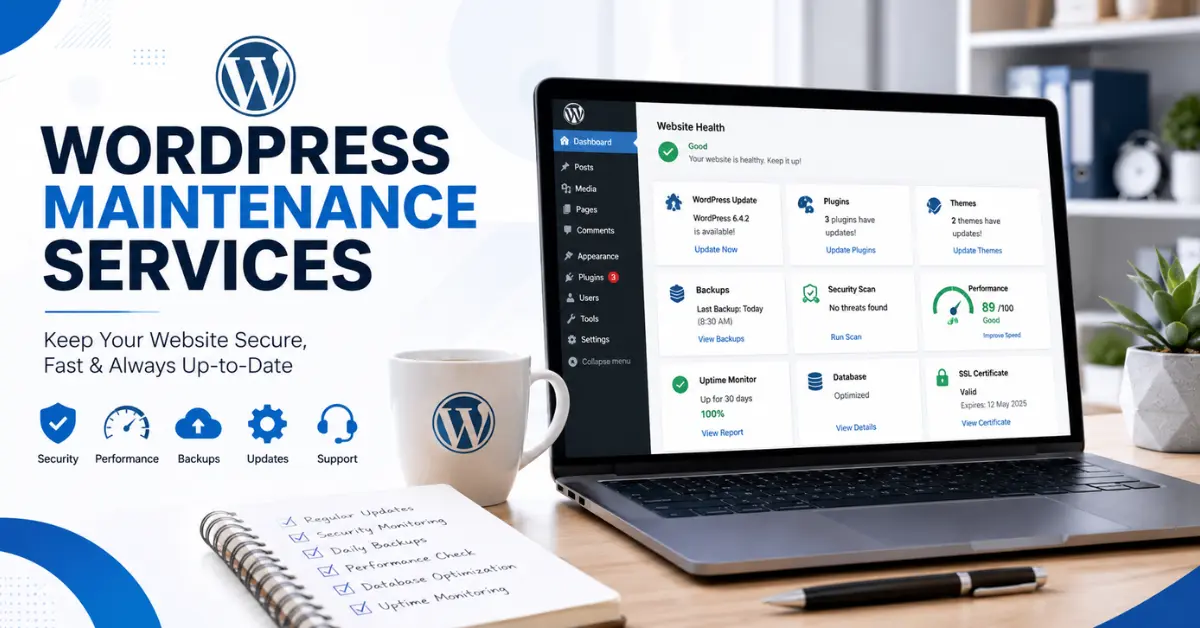
WordPress maintenance services are ongoing website management solutions that keep your WordPress website secure, updated, optimized, and running smoothly. These services include software updates, backups, security monitoring, performance optimization, troubleshooting, and routine health checks to prevent issues before they impact your website.
Unlike building a website, maintenance isn’t a one-time task. WordPress regularly releases new versions, plugins receive updates, themes evolve, and hosting environments change. Without ongoing maintenance, your website gradually becomes slower, less secure, and more vulnerable to technical problems.
Professional maintenance services continuously monitor your website to ensure everything works properly while minimizing downtime and unexpected errors.
What’s Included in WordPress Maintenance Services?
Although maintenance plans vary, most providers include:
- WordPress core updates
- Plugin updates
- Theme updates
- Daily or scheduled backups
- Malware scanning
- Website security monitoring
- Performance optimization
- Database optimization
- Uptime monitoring
- Broken link detection
- Website health reports
- Technical troubleshooting
- Emergency recovery support
Some premium plans also include SEO monitoring, WooCommerce support, content updates, staging environments, and developer assistance.
Why Is WordPress Maintenance Important?
Your website is one of your business’s most valuable digital assets. Just because it’s online doesn’t mean it’s protected.
Regular maintenance helps prevent security risks, improves performance, reduces downtime, and ensures visitors always have a smooth experience.
Think of website maintenance like servicing a car. Regular inspections and preventive care keep everything running efficiently and help avoid expensive repairs later.
Better Website Security
Outdated WordPress installations are one of the most common reasons websites get hacked.
Professional maintenance helps reduce security risks by:
- Installing security updates quickly
- Monitoring suspicious activity
- Removing malware before it spreads
- Blocking brute-force login attempts
- Identifying vulnerable plugins
- Protecting customer and business data
Expert Tip: Security isn’t something you fix after an attack. The best maintenance plans focus on preventing attacks before they happen.
Faster Website Performance
Website speed directly affects both user experience and search engine visibility.
A slow website can increase bounce rates, reduce conversions, and frustrate visitors.
Maintenance services improve speed by:
- Optimizing images
- Cleaning unnecessary database data
- Configuring caching
- Removing unused plugins
- Compressing website files
- Optimizing scripts and CSS
- Monitoring server performance
Even improving load time by one second can significantly improve user engagement and conversion rates.
Improved SEO Performance
Technical website health plays an important role in search engine optimization.
Regular maintenance supports SEO by helping you:
- Improve Core Web Vitals
- Reduce crawl errors
- Fix broken links
- Maintain HTTPS security
- Improve page speed
- Prevent downtime
- Keep website architecture healthy
While maintenance alone won’t guarantee higher rankings, it provides the strong technical foundation that successful SEO depends on.
Better User Experience
Visitors may never notice a well-maintained website, but they immediately notice one that isn’t.
Common problems caused by poor maintenance include:
- Slow pages
- Missing images
- Broken forms
- Checkout errors
- Login problems
- Plugin conflicts
- Random website crashes
Routine maintenance helps eliminate these issues, creating a smoother experience that builds trust with your audience.
Reduced Downtime
Every minute your website is offline can cost you visitors, leads, and revenue.
Downtime often occurs because of:
- Failed updates
- Plugin conflicts
- Hosting issues
- Malware infections
- Server errors
Many professional maintenance providers monitor websites 24/7 and respond quickly when problems occur, helping minimize disruptions.
Lower Long-Term Costs
Many website owners delay maintenance because they see it as an unnecessary expense.
In reality, preventive maintenance is usually far less expensive than recovering from a hacked website, corrupted database, or complete site failure.
Investing in regular maintenance today can save hundreds or even thousands of dollars in future repair costs.
Who Needs WordPress Maintenance Services?
Every WordPress website benefits from regular maintenance, but some websites rely on it more than others.
Business Websites
Your website often creates the first impression of your business.
Maintenance helps ensure:
- Contact forms always work
- Business information stays accurate
- Security remains up to date
- Visitors can access your services without interruptions
Even a few hours of downtime can result in lost leads and damaged credibility.
WooCommerce Stores
Online stores process customer accounts, payments, and orders every day.
Regular maintenance helps:
- Keep checkout functioning properly
- Protect payment information
- Maintain plugin compatibility
- Prevent order processing issues
- Improve shopping speed
Before major WooCommerce updates, experienced maintenance providers usually test compatibility to reduce the risk of breaking your online store.
Bloggers and Content Creators
As your blog grows, so does the complexity of managing it.
Maintenance helps:
- Protect years of published content
- Improve page speed
- Prevent database bloat
- Keep plugins compatible
- Reduce technical errors
Regular backups also ensure your hard work can be restored if something goes wrong.
Membership Websites
Membership sites depend on reliable logins, subscriptions, and protected content.
Maintenance keeps:
- Member accounts accessible
- Payment gateways working
- User information secure
- Restricted content functioning correctly
Reliable maintenance is essential because even small technical issues can affect paying members.
Agency and Client Websites
Digital agencies often manage multiple WordPress websites at the same time.
Professional maintenance makes it easier to:
- Monitor all websites
- Schedule updates
- Generate maintenance reports
- Resolve technical issues quickly
- Deliver consistent service to clients
How Do WordPress Maintenance Services Work?
Professional maintenance isn’t just about clicking the update button.
Experienced providers follow a structured process to reduce risk while keeping websites stable and secure.
Step 1: Perform a Complete Website Audit
Before making any changes, the website is carefully reviewed.
This usually includes checking:
- WordPress version
- Plugin compatibility
- Theme status
- Website speed
- Security vulnerabilities
- Backup system
- Hosting environment
- PHP version
- Database health
This audit identifies potential issues before updates begin.
Step 2: Create a Verified Backup
A full backup is created before any maintenance work starts.
A reliable backup should include:
- Website files
- Database
- Media library
- Themes
- Plugins
- Website settings
Expert Recommendation: Never perform updates without first confirming that your backup can actually be restored. Many website owners discover their backups are incomplete only after an emergency.
Step 3: Update WordPress Safely
Instead of updating everything at once, professionals typically follow a safer process:
- Test compatibility.
- Update the WordPress core.
- Update plugins one by one.
- Update themes.
- Test the website after every major update.
- Verify forms, checkout pages, and key functionality.
This careful approach significantly reduces the risk of plugin conflicts and website failures.
Warning Signs Your Website Needs Maintenance Immediately
Ignoring small issues today can lead to expensive problems later.
Watch for these warning signs:
- Your website has become noticeably slower.
- Plugin or theme updates have been ignored for months.
- Contact forms stop working.
- Visitors report broken pages.
- Security alerts appear in your dashboard.
- You haven’t created a recent backup.
- Spam comments increase suddenly.
- Your SSL certificate has expired.
- Search traffic drops unexpectedly.
- Your hosting provider reports malware or suspicious activity.
If you notice any of these issues, it’s a strong indication that your website requires immediate maintenance before minor problems become major ones.
Complete WordPress Maintenance Services Explained
A professional WordPress maintenance plan goes far beyond installing updates. It focuses on keeping your website secure, fast, reliable, and fully functional while reducing the risk of unexpected downtime or costly technical issues.
Below are the core services included in most professional WordPress maintenance plans.
WordPress Core Updates
The WordPress core is regularly updated to improve security, fix bugs, introduce new features, and maintain compatibility with modern web technologies.
Keeping the core software updated helps:
- Protect against known security vulnerabilities
- Improve website stability
- Increase compatibility with themes and plugins
- Enhance overall performance
Expert Tip: Before installing major WordPress updates, always create a full backup and test the update on a staging website whenever possible.
Plugin Updates and Compatibility Checks
Plugins add valuable functionality, but they can also become security risks if left outdated.
Professional maintenance includes:
- Updating plugins safely
- Testing compatibility before deployment
- Removing abandoned plugins
- Replacing unsupported plugins
- Monitoring plugin performance
- Identifying security vulnerabilities
Instead of updating every plugin at once, experienced professionals update them carefully and test the website after each major change to minimize conflicts.
Theme Updates
Your WordPress theme controls both your website’s design and many of its core functions.
Regular theme maintenance helps:
- Improve security
- Fix bugs
- Maintain compatibility
- Improve loading speed
- Prevent display issues
If you’re using a custom theme, updates should always be performed carefully to avoid overwriting custom code.
Website Security Monitoring
Website security is an ongoing process—not a one-time setup.
Continuous security monitoring helps detect suspicious activity before it becomes a serious problem.
A professional security plan typically includes:
- Malware scanning
- Firewall protection
- Login security
- Brute-force attack prevention
- File integrity monitoring
- Blacklist monitoring
- Security log analysis
Regular monitoring significantly reduces the chances of successful cyberattacks.
Malware Removal
Even secure websites can occasionally become infected through vulnerable plugins, weak passwords, or compromised hosting environments.
Professional malware removal generally involves:
- Identifying infected files.
- Removing malicious code.
- Restoring clean website files.
- Closing security vulnerabilities.
- Strengthening website security.
- Verifying the website is safe for visitors.
The faster malware is removed, the lower the risk of SEO penalties and visitor trust issues.
Automatic Website Backups
Backups are your website’s insurance policy.
If an update fails, malware infects your site, or accidental changes occur, a recent backup allows you to restore your website quickly.
A complete backup should include:
- Website files
- Database
- Images
- Themes
- Plugins
- Configuration files
- Website settings
For business websites, daily automated backups are usually recommended.
Performance Optimization
Website speed directly affects user experience, conversions, and search engine visibility.
Performance optimization may include:
- Image compression
- Browser caching
- Page caching
- CSS optimization
- JavaScript optimization
- Lazy loading
- GZIP compression
- CDN integration
- Server optimization
A faster website keeps visitors engaged while supporting better SEO performance.
Pro Tip: Installing multiple optimization plugins often causes conflicts. It’s usually better to use one well-configured performance solution.
Database Optimization
Over time, WordPress databases collect unnecessary information that can reduce performance.
Routine optimization removes:
- Spam comments
- Post revisions
- Expired transients
- Temporary cache
- Unused database tables
A clean database improves dashboard responsiveness and overall website speed.
Uptime Monitoring
Website downtime often goes unnoticed until visitors report it.
Professional uptime monitoring checks your website continuously and immediately alerts you if it becomes unavailable due to:
- Server failures
- Hosting issues
- Plugin conflicts
- DNS problems
- Security incidents
Early detection helps reduce downtime and protect your business reputation.
Broken Link Monitoring
Broken links create a frustrating experience for visitors and may negatively impact SEO.
Maintenance services regularly check for:
- 404 errors
- Missing images
- Broken internal links
- Broken external links
- Redirect problems
Fixing these issues improves website usability and helps search engines crawl your site more efficiently.
Technical Support
Some website issues require immediate expert attention.
Professional maintenance plans often include technical support for problems such as:
- White Screen of Death
- Plugin conflicts
- Theme errors
- Website crashes
- PHP errors
- Database connection issues
- Failed updates
Quick technical assistance minimizes downtime and helps restore normal website operation faster.
DIY vs Professional WordPress Maintenance
Many website owners wonder whether they should manage maintenance themselves or hire professionals.
The answer depends on your technical knowledge, available time, and how important your website is to your business.
| Feature | DIY Maintenance | Professional Maintenance |
|---|---|---|
| Monthly Cost | Lower | Higher |
| Time Required | High | Minimal |
| Technical Skills | Required | Not Required |
| Security Monitoring | Limited | Continuous |
| Automated Backups | Manual Setup | Usually Included |
| Malware Removal | Self-managed | Expert Assistance |
| Performance Optimization | Basic | Advanced |
| Emergency Support | No | Yes |
| Risk of Errors | Higher | Lower |
If your website generates leads, sales, or revenue, investing in professional maintenance is often the safer long-term decision.
WordPress Maintenance Checklist
Following a structured maintenance schedule helps prevent problems before they affect your website.
Daily Checklist
- Check website uptime
- Monitor security alerts
- Verify backups
- Test important forms
- Review WooCommerce orders (if applicable)
Weekly Checklist
- Update plugins
- Update themes
- Run malware scans
- Check website speed
- Fix broken links
- Moderate spam comments
Monthly Checklist
- Optimize the database
- Review administrator accounts
- Remove unused plugins
- Delete inactive themes
- Verify SSL certificate
- Test backup restoration
- Review crawl errors in Google Search Console
Quarterly Checklist
- Review Core Web Vitals
- Check hosting performance
- Audit installed plugins
- Update PHP version if needed
- Perform a complete security review
Yearly Checklist
- Renew your domain name
- Renew SSL certificates
- Review hosting resources
- Audit website performance
- Refresh outdated content
- Evaluate your overall maintenance strategy
How Much Do WordPress Maintenance Services Cost?
The cost of WordPress maintenance depends on your website’s complexity, traffic, and support requirements.
| Plan | Typical Monthly Cost | Best For |
|---|---|---|
| Basic | $20–$50 | Personal blogs |
| Standard | $50–$150 | Small business websites |
| Professional | $150–$300 | Growing businesses |
| WooCommerce | $200–$500+ | Online stores |
| Enterprise | Custom Pricing | Large organizations |
Factors That Affect Pricing
Maintenance costs often depend on:
- Website size
- Monthly traffic
- Number of plugins
- WooCommerce functionality
- Custom development
- Security requirements
- Backup frequency
- Emergency support
- Reporting and monitoring
Choosing the cheapest plan isn’t always the best decision. Focus on the overall value, level of protection, and expertise included in the service.
Expert Best Practices for WordPress Maintenance
Experienced WordPress professionals follow proven maintenance habits that help prevent problems before they occur.
- Always create a verified backup before installing updates.
- Remove plugins and themes you no longer use.
- Keep WordPress, plugins, and themes updated.
- Enable two-factor authentication for administrator accounts.
- Monitor website uptime continuously.
- Optimize your database regularly.
- Test website functionality after major updates.
- Store backups in an off-site or cloud location.
- Use a staging website before installing significant changes.
- Schedule a complete technical audit at least once every year.
Following these best practices keeps your website secure, improves long-term performance, and reduces the likelihood of unexpected technical issues.
Common WordPress Maintenance Mistakes to Avoid
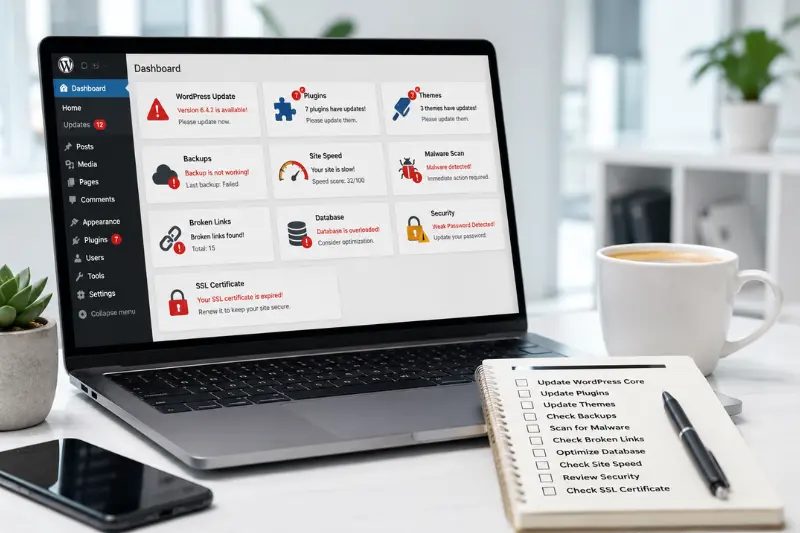
Even experienced website owners can make maintenance mistakes that lead to downtime or security problems.
Avoid these common errors:
- Ignoring update notifications for long periods.
- Updating everything without creating a backup.
- Installing too many plugins.
- Using outdated PHP versions.
- Skipping malware scans.
- Never testing backup restoration.
- Ignoring slow loading times.
- Keeping inactive plugins installed.
- Waiting until something breaks before taking action.
Avoiding these mistakes can save significant time, money, and frustration while keeping your WordPress website healthy and reliable.
Complete WordPress Maintenance Services Explained
A professional WordPress maintenance plan goes far beyond installing updates. It focuses on keeping your website secure, fast, reliable, and fully functional while reducing the risk of unexpected downtime or costly technical issues.
Below are the core services included in most professional WordPress maintenance plans.
WordPress Core Updates
The WordPress core is regularly updated to improve security, fix bugs, introduce new features, and maintain compatibility with modern web technologies.
Keeping the core software updated helps:
- Protect against known security vulnerabilities
- Improve website stability
- Increase compatibility with themes and plugins
- Enhance overall performance
Expert Tip: Before installing major WordPress updates, always create a full backup and test the update on a staging website whenever possible.
Plugin Updates and Compatibility Checks
Plugins add valuable functionality, but they can also become security risks if left outdated.
Professional maintenance includes:
- Updating plugins safely
- Testing compatibility before deployment
- Removing abandoned plugins
- Replacing unsupported plugins
- Monitoring plugin performance
- Identifying security vulnerabilities
Instead of updating every plugin at once, experienced professionals update them carefully and test the website after each major change to minimize conflicts.
Theme Updates
Your WordPress theme controls both your website’s design and many of its core functions.
Regular theme maintenance helps:
- Improve security
- Fix bugs
- Maintain compatibility
- Improve loading speed
- Prevent display issues
If you’re using a custom theme, updates should always be performed carefully to avoid overwriting custom code.
Website Security Monitoring
Website security is an ongoing process—not a one-time setup.
Continuous security monitoring helps detect suspicious activity before it becomes a serious problem.
A professional security plan typically includes:
- Malware scanning
- Firewall protection
- Login security
- Brute-force attack prevention
- File integrity monitoring
- Blacklist monitoring
- Security log analysis
Regular monitoring significantly reduces the chances of successful cyberattacks.
Malware Removal
Even secure websites can occasionally become infected through vulnerable plugins, weak passwords, or compromised hosting environments.
Professional malware removal generally involves:
- Identifying infected files.
- Removing malicious code.
- Restoring clean website files.
- Closing security vulnerabilities.
- Strengthening website security.
- Verifying the website is safe for visitors.
The faster malware is removed, the lower the risk of SEO penalties and visitor trust issues
Automatic Website Backups
Backups are your website’s insurance policy.
If an update fails, malware infects your site, or accidental changes occur, a recent backup allows you to restore your website quickly.
A complete backup should include:
- Website files
- Database
- Images
- Themes
- Plugins
- Configuration files
- Website settings
For business websites, daily automated backups are usually recommended.
Performance Optimization
Website speed directly affects user experience, conversions, and search engine visibility.
Performance optimization may include:
- Image compression
- Browser caching
- Page caching
- CSS optimization
- JavaScript optimization
- Lazy loading
- GZIP compression
- CDN integration
- Server optimization
A faster website keeps visitors engaged while supporting better SEO performance.
Pro Tip: Installing multiple optimization plugins often causes conflicts. It’s usually better to use one well-configured performance solution.
Database Optimization
Over time, WordPress databases collect unnecessary information that can reduce performance.
Routine optimization removes:
- Spam comments
- Post revisions
- Expired transients
- Temporary cache
- Unused database tables
A clean database improves dashboard responsiveness and overall website speed.
Uptime Monitoring
Website downtime often goes unnoticed until visitors report it.
Professional uptime monitoring checks your website continuously and immediately alerts you if it becomes unavailable due to:
- Server failures
- Hosting issues
- Plugin conflicts
- DNS problems
- Security incidents
Early detection helps reduce downtime and protect your business reputation.
Broken Link Monitoring
Broken links create a frustrating experience for visitors and may negatively impact SEO.
Maintenance services regularly check for:
- 404 errors
- Missing images
- Broken internal links
- Broken external links
- Redirect problems
Fixing these issues improves website usability and helps search engines crawl your site more efficiently.
Technical Support
Some website issues require immediate expert attention.
Professional maintenance plans often include technical support for problems such as:
- White Screen of Death
- Plugin conflicts
- Theme errors
- Website crashes
- PHP errors
- Database connection issues
- Failed updates
Quick technical assistance minimizes downtime and helps restore normal website operation faster.
DIY vs Professional WordPress Maintenance
Many website owners wonder whether they should manage maintenance themselves or hire professionals.
The answer depends on your technical knowledge, available time, and how important your website is to your business.
| Feature | DIY Maintenance | Professional Maintenance |
|---|---|---|
| Monthly Cost | Lower | Higher |
| Time Required | High | Minimal |
| Technical Skills | Required | Not Required |
| Security Monitoring | Limited | Continuous |
| Automated Backups | Manual Setup | Usually Included |
| Malware Removal | Self-managed | Expert Assistance |
| Performance Optimization | Basic | Advanced |
| Emergency Support | No | Yes |
| Risk of Errors | Higher | Lower |
If your website generates leads, sales, or revenue, investing in professional maintenance is often the safer long-term decision.
WordPress Maintenance Checklist
Following a structured maintenance schedule helps prevent problems before they affect your website.
Daily Checklist
- Check website uptime
- Monitor security alerts
- Verify backups
- Test important forms
- Review WooCommerce orders (if applicable)
Weekly Checklist
- Update plugins
- Update themes
- Run malware scans
- Check website speed
- Fix broken links
- Moderate spam comments
Monthly Checklist
- Optimize the database
- Review administrator accounts
- Remove unused plugins
- Delete inactive themes
- Verify SSL certificate
- Test backup restoration
- Review crawl errors in Google Search Console
Quarterly Checklist
- Review Core Web Vitals
- Check hosting performance
- Audit installed plugins
- Update PHP version if needed
- Perform a complete security review
Yearly Checklist
- Renew your domain name
- Renew SSL certificates
- Review hosting resources
- Audit website performance
- Refresh outdated content
- Evaluate your overall maintenance strategy
How Much Do WordPress Maintenance Services Cost?
The cost of WordPress maintenance depends on your website’s complexity, traffic, and support requirements.
| Plan | Typical Monthly Cost | Best For |
|---|---|---|
| Basic | $20–$50 | Personal blogs |
| Standard | $50–$150 | Small business websites |
| Professional | $150–$300 | Growing businesses |
| WooCommerce | $200–$500+ | Online stores |
| Enterprise | Custom Pricing | Large organizations |
Factors That Affect Pricing
Maintenance costs often depend on:
- Website size
- Monthly traffic
- Number of plugins
- WooCommerce functionality
- Custom development
- Security requirements
- Backup frequency
- Emergency support
- Reporting and monitoring
Choosing the cheapest plan isn’t always the best decision. Focus on the overall value, level of protection, and expertise included in the service.
Expert Best Practices for WordPress Maintenance
Experienced WordPress professionals follow proven maintenance habits that help prevent problems before they occur.
- Always create a verified backup before installing updates.
- Remove plugins and themes you no longer use.
- Keep WordPress, plugins, and themes updated.
- Enable two-factor authentication for administrator accounts.
- Monitor website uptime continuously.
- Optimize your database regularly.
- Test website functionality after major updates.
- Store backups in an off-site or cloud location.
- Use a staging website before installing significant changes.
- Schedule a complete technical audit at least once every year.
Following these best practices keeps your website secure, improves long-term performance, and reduces the likelihood of unexpected technical issues.
Common WordPress Maintenance Mistakes to Avoid
Even experienced website owners can make maintenance mistakes that lead to downtime or security problems.
Avoid these common errors:
- Ignoring update notifications for long periods.
- Updating everything without creating a backup.
- Installing too many plugins.
- Using outdated PHP versions.
- Skipping malware scans.
- Never testing backup restoration.
- Ignoring slow loading times.
- Keeping inactive plugins installed.
- Waiting until something breaks before taking action.
Avoiding these mistakes can save significant time, money, and frustration while keeping your WordPress website healthy and reliable.
Common WordPress Problems and How to Fix Them
Even a well-built WordPress website can develop issues over time. Software updates, server changes, plugin conflicts, or security vulnerabilities can affect your site’s performance if they aren’t addressed quickly.
The good news is that most common WordPress problems can be prevented—or resolved—through regular maintenance.
| Problem | Common Cause | Recommended Solution |
|---|---|---|
| White Screen of Death | Plugin or theme conflict | Disable the conflicting plugin or theme and restore a recent backup if necessary. |
| 500 Internal Server Error | Corrupt .htaccess file or PHP issue | Regenerate the .htaccess file, increase PHP memory, and review server logs. |
| Slow Website | Large images, poor hosting, excessive plugins | Optimize images, enable caching, clean the database, and remove unnecessary plugins. |
| Hacked Website | Outdated software or weak passwords | Remove malware, update all software, reset passwords, and strengthen security. |
| Database Connection Error | Incorrect database credentials or server issue | Verify database settings and contact your hosting provider if needed. |
| Plugin Conflicts | Incompatible updates | Disable plugins one at a time to identify the conflict, then update or replace the problematic plugin. |
| SSL Errors | Expired or misconfigured certificate | Renew your SSL certificate and update website URLs to use HTTPS. |
| Broken Layout | Theme or CSS conflicts | Restore the previous version, clear caches, and test recent changes. |
Expert Tip
If your website suddenly stops working after an update, don’t panic. Restore the latest verified backup first, then identify the root cause in a staging environment before making additional changes.
Best WordPress Maintenance Tools
The right tools can simplify maintenance and improve your website’s security, performance, and reliability. While you don’t need every available plugin, choosing trusted solutions makes ongoing maintenance much easier.
Security Tools
These tools help protect your website against malware, brute-force attacks, and unauthorized access.
Popular options include:
- Wordfence Security
- Solid Security
- Sucuri Security
Backup Solutions
Reliable backups ensure you can restore your website quickly if an update fails or unexpected issues occur.
Popular backup plugins include:
- UpdraftPlus
- BlogVault
- Jetpack Backup
Best Practice: Store backups in a secure cloud location instead of keeping them only on your hosting server.
Performance Optimization Tools
Website speed affects user experience, conversions, and SEO.
Popular optimization tools include:
- WP Rocket
- LiteSpeed Cache
- FlyingPress
These tools improve loading speed through caching, file optimization, and resource management.
Image Optimization Tools
Large images are one of the biggest causes of slow websites.
Popular image optimization plugins include:
- ShortPixel
- Imagify
- EWWW Image Optimizer
Compressing images without sacrificing quality can significantly improve page speed.
Website Monitoring Tools
Monitoring tools notify you immediately if your website becomes unavailable.
Common solutions include:
- UptimeRobot
- Better Stack
- Pingdom
Early alerts allow you to resolve downtime before it affects visitors or search rankings.
SEO and Technical Health Tools
Website maintenance also supports technical SEO.
Useful tools help monitor:
- Broken links
- XML sitemaps
- Crawl errors
- Core Web Vitals
- Mobile usability
- HTTPS status
Combining regular maintenance with technical SEO audits helps create a stronger foundation for long-term organic growth.
How to Choose the Right WordPress Maintenance Service
Not every maintenance provider offers the same level of expertise. Choosing the right service can save time, improve website performance, and reduce long-term costs.
Choose a WordPress Specialist
A provider that focuses on WordPress understands its updates, security risks, and common compatibility issues better than a general web support company.
Ask questions such as:
- How many WordPress websites do they manage?
- Do they support WooCommerce?
- Can they handle custom themes or plugins?
Review the Services Included
Before purchasing a maintenance plan, confirm exactly what’s included.
A comprehensive maintenance package should cover:
- Core updates
- Plugin updates
- Theme updates
- Security monitoring
- Malware scanning
- Automated backups
- Performance optimization
- Uptime monitoring
- Technical support
- Monthly maintenance reports
Avoid choosing a provider based on price alone.
Understand the Backup and Recovery Process
A backup is only useful if it can be restored successfully.
Ask your provider:
- How often are backups created?
- Where are backups stored?
- How quickly can the website be restored?
- Are backups tested regularly?
Reliable recovery procedures are just as important as creating backups.
Check Support Availability
Website problems don’t always happen during business hours.
Choose a maintenance provider that offers prompt support for urgent issues such as:
- Website downtime
- Malware infections
- Failed updates
- WooCommerce checkout errors
- Server problems
Fast response times can prevent extended downtime and lost revenue.
Look for Transparent Reporting
Professional maintenance providers should keep you informed about the work they perform.
Monthly reports may include:
- Completed updates
- Security scan results
- Backup status
- Performance improvements
- Uptime statistics
- Issues resolved
These reports provide confidence that your website is being actively maintained.
Professional Tips for Long-Term WordPress Website Health
Long-term website success depends on consistent maintenance rather than occasional fixes.
Follow these expert recommendations:
- Keep WordPress core, plugins, and themes updated.
- Remove unused plugins and inactive themes.
- Enable two-factor authentication for administrator accounts.
- Use strong, unique passwords.
- Monitor website speed every month.
- Test important forms after updates.
- Store backups in multiple secure locations.
- Review administrator accounts regularly.
- Use high-quality WordPress hosting.
- Schedule a complete technical audit at least once each year.
Small maintenance tasks completed consistently are far more effective than dealing with major website failures later.
Frequently Asked Questions (FAQs)
What are WordPress maintenance services?
WordPress maintenance services are ongoing website management solutions that include software updates, security monitoring, backups, performance optimization, troubleshooting, and routine health checks to keep your website secure and running efficiently.
How often should I maintain my WordPress website?
Security monitoring should run continuously, while updates, backups, and performance checks should be performed regularly. Most websites benefit from weekly maintenance and a complete technical review every month.
Can I maintain my WordPress website myself?
Yes. If you have WordPress experience, you can perform routine maintenance yourself. However, business websites and WooCommerce stores often benefit from professional maintenance because they require ongoing monitoring, advanced security, and expert troubleshooting.
How much do WordPress maintenance services cost?
Pricing varies depending on your website’s size and requirements. Basic maintenance plans generally start around $20–$50 per month, while advanced business and eCommerce plans may cost significantly more.
Do WordPress maintenance services improve SEO?
Maintenance doesn’t directly improve rankings, but it strengthens the technical foundation of your website by improving speed, security, uptime, and crawlability—all of which contribute to better SEO performance.
Are automatic updates enough?
No. Automatic updates only install software updates. They don’t test compatibility, verify backups, monitor security, optimize performance, or troubleshoot issues if something breaks.
What happens if I skip WordPress maintenance?
Skipping maintenance increases the risk of security breaches, slow performance, plugin conflicts, data loss, broken functionality, lower search visibility, and expensive emergency repairs.
Final Thoughts
A successful WordPress website requires more than attractive design and quality content-it also needs ongoing care. Regular maintenance helps prevent security threats, improve performance, reduce downtime, and ensure your website continues delivering a positive experience for visitors.
Whether you manage a personal blog, a business website, or a growing WooCommerce store, investing in professional WordPress maintenance services is one of the smartest ways to protect your website and support long-term growth.
Instead of waiting for problems to appear, take a proactive approach. Consistent maintenance saves time, reduces costs, and keeps your website secure, reliable, and ready to perform at its best.