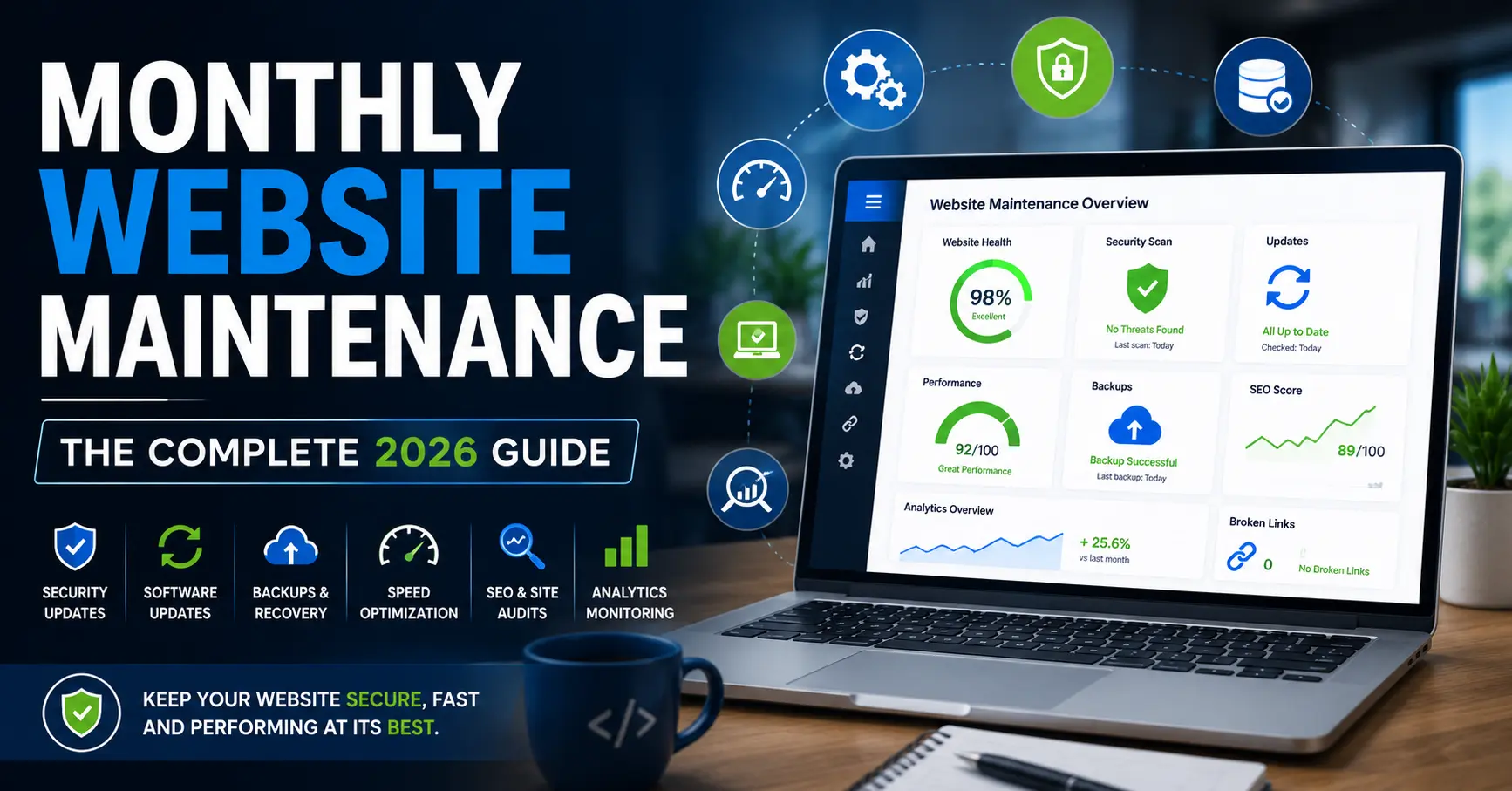
Your website isn’t a “set it and forget it” asset. The moment you stop paying attention, things start quietly breaking — a plugin goes outdated, a form stops sending emails, a page loads three seconds slower than it did last quarter. None of it feels urgent until it is.
Monthly Website Maintenance is how you stay ahead of those problems. Done consistently, it keeps your site fast, secure, and working for your business instead of against it. This guide walks you through exactly what that looks like — task by task, with honest advice on what you can handle yourself and when it’s worth bringing in help.
What Is Monthly Website Maintenance?
Monthly website maintenance is the ongoing process of reviewing, updating, and optimizing your website to keep it performing at its best. It covers everything from software updates and security scans to performance checks, broken link audits, content freshness reviews, and analytics analysis.
Think of it the way you’d think about servicing a car. You don’t wait for the engine light to come on. You schedule oil changes, check tire pressure, and replace filters before small problems become expensive ones. Your website works the same way.
What separates monthly maintenance from weekly or annual tasks is the level of depth. Weekly checks tend to be quick pulse checks — is the site up? Are updates pending? Monthly maintenance is where you go deeper: reviewing traffic trends, auditing links, testing forms, checking your SEO health, and proactively optimizing before issues compound.
Why Monthly Maintenance Matters More Than Most People Realize
Most website problems don’t announce themselves. They accumulate silently.
A plugin that hasn’t been updated in three months quietly introduces a vulnerability. A page that was ranking on the first page of Google starts slipping because a competitor published better content. A checkout form begins failing intermittently — you only find out when a customer emails to complain. By then, you’ve already lost sales.
Here’s what consistent monthly maintenance actually protects you from:
Security breaches. Outdated CMS software, plugins, and themes are the leading entry points for hackers. Regular updates close those gaps before attackers find them.
Search ranking drops. Google factors in site speed, mobile usability, broken links, and content quality. Ignoring these for months creates a slow but steady SEO decline that’s hard to reverse.
Lost revenue from broken functionality. Forms that don’t submit, buttons that don’t work, and checkout flows that error out directly cost you leads and sales.
Expensive emergency fixes. A hacked site or server crash with no recent backup can cost thousands to recover from. Routine maintenance costs a fraction of emergency repair.
Eroded user trust. Visitors make split-second judgments about your brand based on how your website performs. A slow, glitchy, or outdated site signals that you don’t pay attention — and they may wonder if you’ll pay attention to their order or inquiry either.
How to Do Monthly Website Maintenance Step by Step
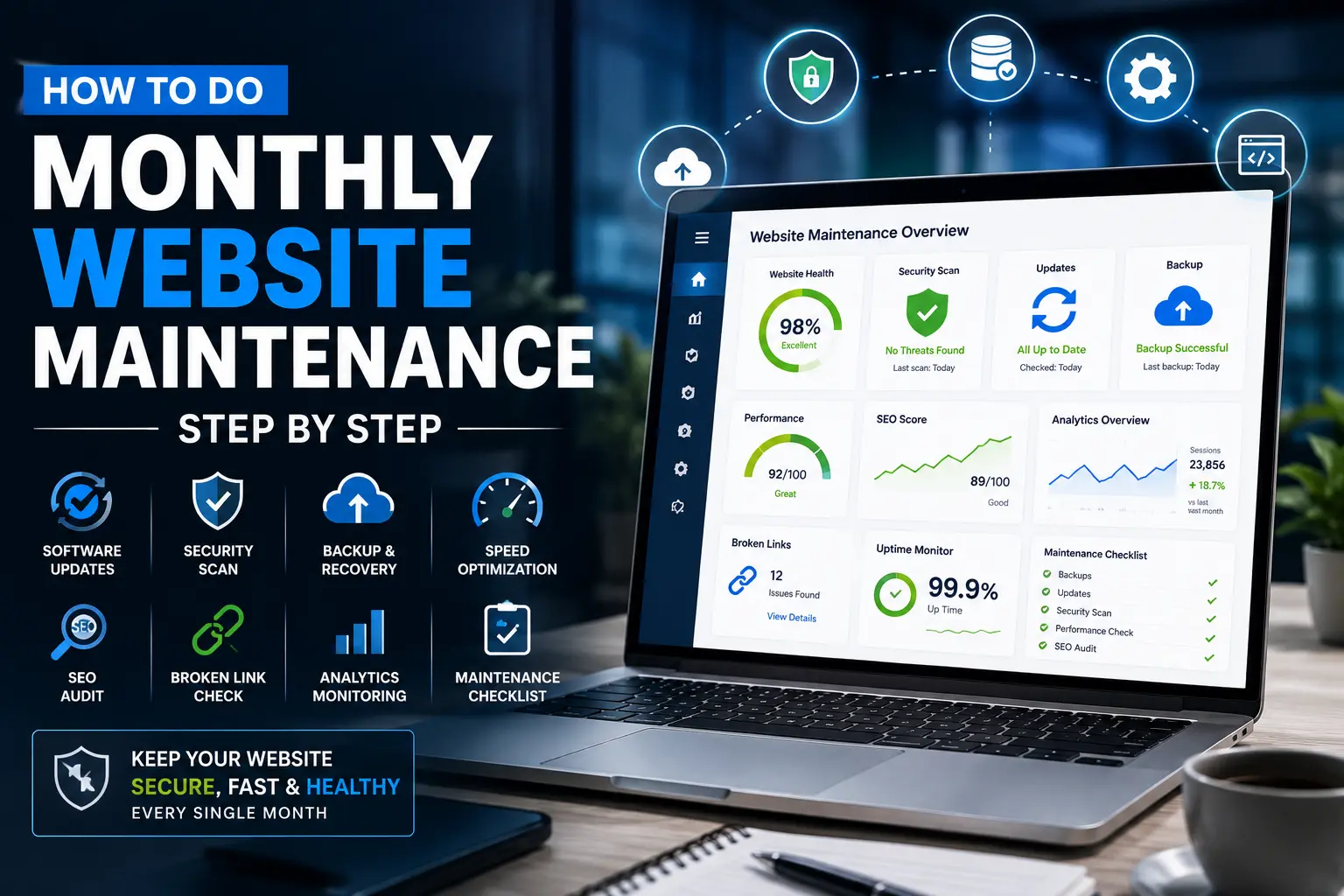
Monthly website maintenance is easier when you follow a clear step-by-step process. Rather than checking random tasks each month, it is better to follow a structured workflow that covers security, performance, SEO, content, and website functionality. This helps prevent technical issues, improves user experience, and keeps your website performing at its best.
Step 1: Create a Full Website Backup
Before making any changes, create a complete backup of your website files and database. This ensures you can quickly restore your site if something goes wrong during updates or maintenance.
Step 2: Update Your Website Software
Update your CMS, plugins, themes, and any third-party tools. Keeping software updated helps protect your website from security vulnerabilities and compatibility issues.
Step 3: Run a Security Scan
Perform a full security scan to check for malware, suspicious activity, broken security settings, and unauthorized access attempts.
Step 4: Check Website Performance
Test your website speed using tools such as Google PageSpeed Insights or GTmetrix. Identify slow-loading pages and optimize images, caching, and scripts where necessary.
Step 5: Fix Broken Links and Errors
Review your website for broken links, redirect issues, and 404 errors. Fixing these problems improves both user experience and search engine crawling.
Step 6: Test Forms and Important Features
Check contact forms, checkout pages, login areas, calculators, and navigation menus to ensure everything is functioning correctly.
Step 7: Review Analytics and Search Data
Analyze Google Analytics and Google Search Console reports to monitor traffic, user behavior, keyword performance, and indexing issues.
Step 8: Update Existing Content
Refresh outdated information, update statistics, improve internal links, and ensure your content remains accurate and relevant.
Step 9: Perform an SEO Check
Review title tags, meta descriptions, sitemap status, indexing reports, and keyword rankings to maintain strong search visibility.
Step 10: Review Hosting and User Access
Check hosting resources, SSL certificates, domain status, backups, and user permissions to ensure your website remains secure and stable.
The Complete Monthly Website Maintenance Checklist
Here’s a practical, prioritized checklist you can use every month. It’s organized so you can work through it systematically — or hand it to your developer or agency as a clear scope of work.
1. Back Up Your Entire Website
Before touching anything else, confirm you have a recent, working backup. This means both your database and all your website files — not just one or the other.
Your backup should be stored somewhere separate from your main hosting server. If your host goes down and takes your backup with it, you’ve gained nothing. Cloud storage (Amazon S3, Google Drive, Dropbox) or an offsite backup service works well.
Test your backups periodically by doing a mock restore. A backup you’ve never tested is a backup you can’t trust.
Recommended tools: UpdraftPlus, BackupBuddy (WordPress); hosting-level backups from providers like WP Engine or Kinsta; Jetpack Backup.
2. Update Your CMS, Plugins, and Themes
This is the single most impactful security task you can do. Outdated software is the primary way attackers get into websites — not through elaborate hacking, but through known vulnerabilities in code that simply hasn’t been patched.
Every month, log into your CMS dashboard and apply all pending updates. That includes:
- Core CMS updates (WordPress, Joomla, Drupal, etc.)
- All active plugins and extensions
- Your theme and any child theme
- PHP version, if your host allows you to manage it
A few practical tips: Don’t update everything at once on a live site. Use a staging environment to test major updates first, especially CMS core updates or updates to critical plugins like WooCommerce or your page builder. After each round of updates, click through your key pages to confirm nothing broke.
Also, go through your installed plugins and delete any you’re not actively using. Deactivating isn’t enough — an inactive plugin can still be exploited. Remove it entirely.
3. Run a Full Security Scan
Even if your software is up to date, run a dedicated malware and security scan monthly. Hackers sometimes inject malicious code through methods that don’t require outdated software — compromised passwords, phishing, or vulnerabilities in your hosting environment.
A security scan checks your files and database for malicious code, suspicious users, unauthorized file changes, and known malware signatures.
Recommended tools: Wordfence (WordPress), Sucuri, MalCare, iThemes Security. Many hosting providers also include basic security scanning.
Additional checks to include:
- Verify your SSL certificate is active and not approaching expiration
- Review admin user accounts — remove anyone who no longer needs access
- Check for any unauthorized admin accounts that may have been created
- Confirm your login page is protected (two-factor authentication, login attempt limits)
4. Test Site Speed and Performance
Site speed directly affects both user experience and your search rankings. Research consistently shows that even a one-second delay in page load time leads to measurably higher bounce rates and lower conversion rates.
Run your key pages — homepage, primary service or product pages, and your highest-traffic blog posts — through Google PageSpeed Insights or GTmetrix. Record your scores. The goal isn’t a perfect 100, but you want to track trends and catch drops before they compound.
Common monthly performance fixes:
- Compress and properly size any new images uploaded that month
- Clear your database of post revisions, spam comments, transients, and orphaned metadata
- Review your caching configuration
- Check for render-blocking resources flagged in your speed reports
One thing many guides miss: check your Core Web Vitals specifically in Google Search Console, not just PageSpeed Insights. The Search Console data reflects real-user experience on your actual site, which is what Google uses for ranking. PageSpeed Insights gives lab data — useful, but not the same thing.
Recommended tools: Google PageSpeed Insights, GTmetrix, Google Search Console (Core Web Vitals report).
5. Check for Broken Links and 404 Errors
Over time, links break. Pages get deleted, URLs change, external sites go offline. Every broken link is a dead end for both your visitors and search engine crawlers.
Broken internal links hurt your site structure, make crawling less efficient, and create a poor user experience. Broken external links signal that your content may be outdated. Either way, they’re worth fixing monthly.
For each broken internal link: either update it to the correct current URL, or set up a 301 redirect if the page has moved. For broken external links: find an updated replacement source, or remove the link if none exists.
Recommended tools: Screaming Frog (free up to 500 URLs), Ahrefs Site Audit, Semrush Site Audit, or the free Broken Link Checker plugin for WordPress.
6. Test All Forms and Key Functionality
Your website may look fine and still be silently failing at the things that matter most to your business.
Each month, go through every form on your site and submit a test entry. Verify that:
- The submission goes through without errors
- You receive the notification email on your end
- The submitter receives any auto-reply or confirmation you have set up
- The submission appears correctly in your database, CRM, or email platform
Beyond forms, test other critical functionality: payment processing if you run an ecommerce site, account login/logout flows, any interactive tools or calculators, and your navigation menus on both desktop and mobile.
After CMS or plugin updates especially, functionality that worked last month may silently break. Monthly testing catches these regressions before your customers do.
7. Review Google Analytics and Google Search Console
Your website data tells a story. Monthly, you should actually read it.
In Google Analytics 4, look at:
- Overall traffic trends — is organic traffic growing, flat, or declining?
- Top landing pages — which pages are driving the most visitors?
- Engagement metrics — are bounce rates trending in the right direction?
- Conversion data — are your key goals being completed?
- Audience and device breakdowns — any shifts worth noting?
In Google Search Console, check:
- The Coverage report for any new indexing errors or pages being excluded
- Core Web Vitals for any pages that have shifted from “Good” to “Needs Improvement”
- Manual actions — confirm there are none
- Top queries and pages — look for ranking changes worth investigating
- Any new security issues or manual penalties
Many website owners have Google Analytics installed but never look at it. This step is where maintenance becomes strategy. You’re not just keeping the site alive — you’re understanding how it’s actually performing and where to focus your improvement efforts next.
8. Review and Refresh Content
Search engines reward fresh, accurate, useful content. If a core page on your site references outdated statistics, a service you no longer offer, or pricing that changed six months ago, that’s a problem.
Monthly content maintenance includes:
- Reviewing your highest-traffic pages for accuracy — update facts, stats, and examples
- Checking that featured snippets or schema-enhanced content still reflect what your pages say
- Publishing at least one new piece of content (blog post, case study, FAQ update) to signal ongoing activity to search engines
- Checking that copyright dates and “last updated” notices are current
A task most competitors overlook: go back to your top-performing old blog posts and update them. Refreshing a well-ranking post with current information and new internal links often yields more SEO return than publishing brand-new content from scratch.
9. Audit Your SEO Health
A monthly SEO review doesn’t have to be an exhaustive audit. Focus on the signals that move quickly:
- Check your keyword rankings for your primary target pages — look for drops of more than a few positions
- Review your backlink profile for any sudden drops or spikes (unusual activity can indicate a penalty or attack)
- Verify that your XML sitemap is accurate and submitted in Search Console
- Confirm that your robots.txt file isn’t accidentally blocking important pages
- Check that all important pages have unique, properly formatted title tags and meta descriptions
If you’re using an SEO plugin like Yoast or Rank Math on WordPress, use their site health features as a starting point — but don’t rely on them exclusively. They check on-page factors well but miss technical and off-page issues.
10. Review User Access and Permissions
Over time, websites accumulate users who no longer need access: former employees, contractors from past projects, agency accounts from old engagements.
Monthly (or at minimum quarterly), review your CMS user list and remove or downgrade access for anyone who doesn’t need it. Apply the principle of least privilege: give users the minimum permissions they need to do their job, nothing more.
Also review any API keys, third-party integrations, or connected apps. Remove connections you’re no longer using. Each one is a potential vector if it’s ever compromised.
11. Check Hosting and Infrastructure
Your hosting environment is the foundation everything runs on. Monthly, it’s worth a quick review:
- Check your server resource usage — are you consistently close to storage or bandwidth limits?
- Review uptime reports from your monitoring tool — were there any outages last month you weren’t aware of?
- Confirm your domain renewal date isn’t approaching — the consequences of an accidentally expired domain are severe
- Verify your SSL certificate renewal is handled (most auto-renew, but check)
- Review server error logs for any recurring issues
If you’re consistently hitting resource limits, it may be time to upgrade your hosting plan or optimize your site’s resource consumption before it starts causing visitor-facing problems.
Recommended tools: UptimeRobot (free uptime monitoring), StatusCake, your hosting dashboard’s resource monitor.
A Week-by-Week Monthly Schedule
Managing all of this at once can feel overwhelming. Breaking it across four weeks makes it manageable:
Week 1 — Security: Backups, software updates, security scans, user access review.
Week 2 — Performance: Speed testing, image optimization, database cleanup, Core Web Vitals review.
Week 3 — Content and SEO: Broken links, form testing, content updates, keyword ranking checks.
Week 4 — Analytics and Planning: Review GA4 and Search Console, document what you found, plan priority improvements for next month.
This structure means you’re never trying to do everything in one sitting, and every critical area gets attention every single month.
How Much Does Monthly Website Maintenance Cost?
Costs vary significantly based on your site’s size, complexity, and whether you’re doing it yourself or hiring help.
DIY maintenance costs primarily your time — typically 2–6 hours per month for a basic business website, more for complex or high-traffic sites. The financial costs are mainly your existing tools and hosting.
Freelancers typically charge $50–$150/hour. For a standard monthly maintenance scope, expect $150–$500/month depending on what’s included.
Agencies and managed services range from about $100–$500/month for small to mid-size business websites, and $500–$2,500+/month for larger or more complex sites including ecommerce platforms.
Here’s a rough breakdown by site type:
| Website Type | DIY Time/Month | Professional Cost/Month |
|---|---|---|
| Personal blog / small brochure site | 1–2 hours | $50–$150 |
| Small business website (5–20 pages) | 2–4 hours | $150–$400 |
| Ecommerce (small to mid-size) | 4–8 hours | $400–$1,500 |
| Large / complex / high-traffic | 8–20+ hours | $1,500–$2,500+ |
The hidden cost of skipping maintenance is almost always higher than the cost of doing it. A single security incident, recovery from a hacked site, or emergency developer engagement for a critical failure typically costs far more than a year of consistent preventive maintenance.
DIY vs. Hiring Professional Website Maintenance
Neither approach is universally right. The decision depends on your time, technical confidence, and what the website is worth to your business.
Do it yourself if:
- You’re comfortable in your CMS dashboard
- Your site is relatively simple and doesn’t process payments or store sensitive customer data
- You have consistent time to commit to it every month without letting it slip
- Downtime for a few hours wouldn’t significantly harm your business
Hire a professional if:
- Your website is your primary lead generation or revenue channel
- You’re running ecommerce with customer payment data
- You don’t have the time or inclination to stay current with security and technical best practices
- You’ve experienced a security incident or major technical failure in the past
- You want the peace of mind of guaranteed response times if something goes wrong
When evaluating a maintenance provider, ask specifically what’s included in each monthly scope, what’s not included, how they handle emergency situations, what their response time is, and whether they provide monthly reports showing what was done.
Tools That Make Monthly Maintenance Faster
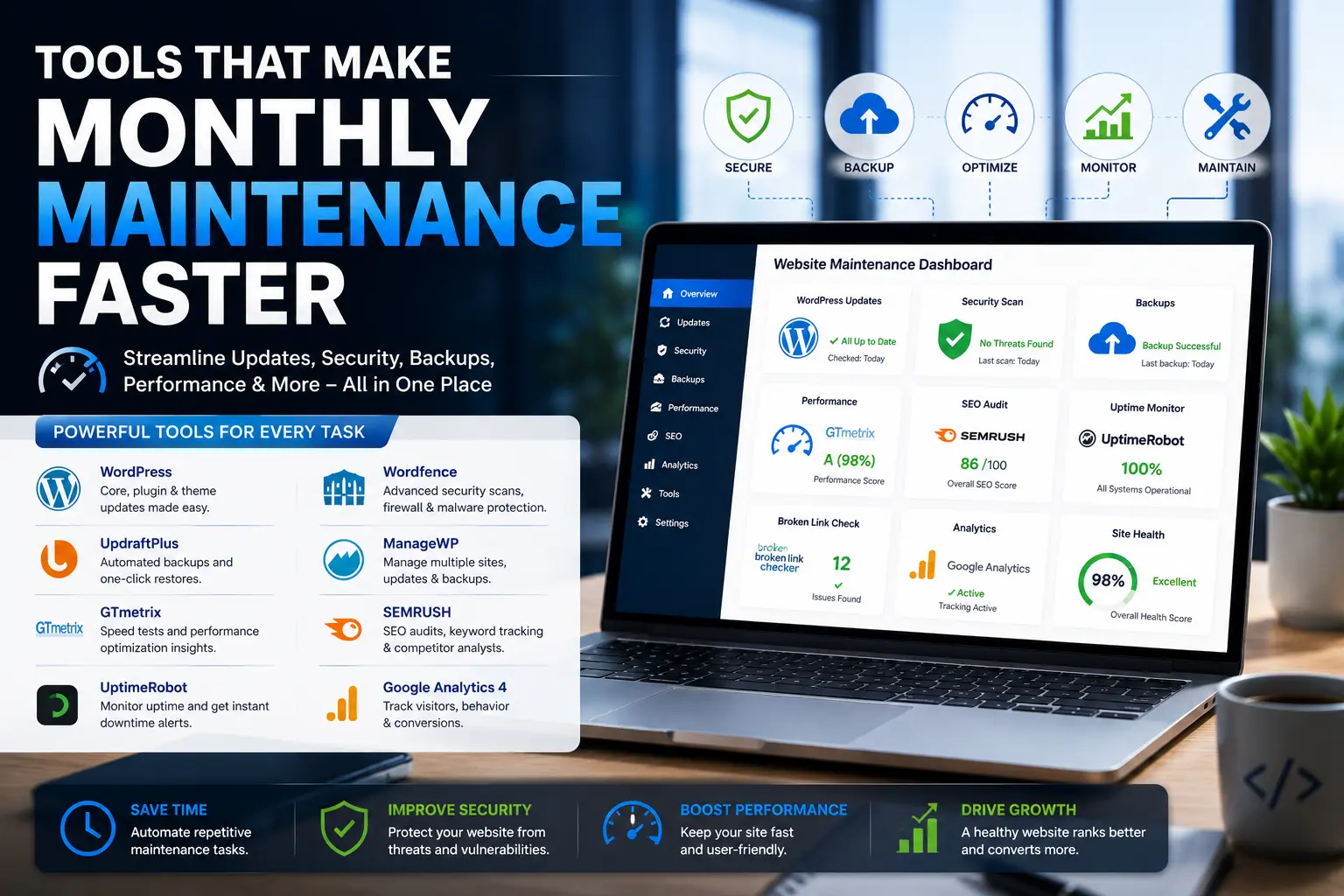
You don’t need to buy every tool on the market. A focused stack covers most needs:
- Security: Wordfence or Sucuri (website scanning); your hosting provider’s firewall
- Backups: UpdraftPlus, BackupBuddy, or your managed host’s built-in backup system
- Performance: Google PageSpeed Insights (free), GTmetrix (free tier available)
- Uptime monitoring: UptimeRobot (free for basic monitoring)
- Broken links: Screaming Frog (free up to 500 URLs), Ahrefs, Semrush
- Analytics: Google Analytics 4 + Google Search Console (both free)
- SEO: Yoast or Rank Math (WordPress on-page), plus Search Console for technical
Many managed hosting providers (WP Engine, Kinsta, SiteGround, Flywheel) bundle several of these — automatic backups, basic security scanning, automatic updates — into their plans. If you’re starting fresh, choosing a host that handles more of this automatically reduces your monthly maintenance burden considerably.
Common Mistakes to Avoid
- Updating plugins without testing first. Major updates can break themes, page builders, or custom code. Always back up before updating, and test on a staging site for anything critical.
- Relying only on automated backups without testing restores. An untested backup may be corrupted, incomplete, or stored incorrectly. Test yours at least quarterly.
- Treating all plugins as equally safe. A plugin that hasn’t received an update from its developer in over a year is a risk. Check the update history and active install base before relying on it.
- Ignoring Google Search Console warnings. Many site owners only log in when they think something is wrong. By then, a manual penalty or crawl issue may have already hurt their rankings for weeks.
- Skipping mobile testing. Run your monthly functionality checks on a real mobile device, not just a desktop browser resized to a narrow width. Real mobile rendering and touch interaction behave differently.
- Letting content go stale. A blog post that still references “2022 data” in 2026 signals to readers and search engines that your content isn’t actively maintained.
What to Include in a Monthly Maintenance Report
If you’re managing maintenance for a client — or you’ve outsourced it and want to know what accountability looks like — a monthly report should cover:
- Software versions updated (CMS, plugins, themes) and dates
- Backup confirmation with storage location
- Security scan results and any issues found/resolved
- Performance scores (before and after if improvements were made)
- Broken links found and fixed
- Uptime percentage for the month
- Key analytics highlights (traffic, conversions, notable changes)
- Issues flagged that need attention or are outside the standard scope
A good maintenance partner gives you this without being asked. It proves the work was done and creates a paper trail that’s invaluable if something goes wrong.
Frequently Asked Questions
How long does monthly website maintenance take?
For a straightforward small business website, plan on 2–4 hours per month. Complex sites with ecommerce, multiple integrations, or large content libraries can take 6–10+ hours.
Can I automate monthly website maintenance?
Partially. Software updates, backups, and uptime monitoring can all be automated. But reviewing analytics, testing forms manually, auditing content, and checking for broken links still benefits from human judgment. Automation handles the routine; you handle the interpretation.
What happens if I skip monthly maintenance?
Over time: security vulnerabilities accumulate, site speed degrades, rankings soften, and small problems compound into bigger ones. A skipped month isn’t a disaster. A skipped year often is.
Is monthly maintenance the same as a website audit?
No. Monthly maintenance is ongoing upkeep — the equivalent of regular servicing. A website audit is a deeper, periodic assessment of your entire site’s technical health, SEO, UX, and content strategy. Audits are valuable, but they complement maintenance rather than replace it.
Do I need monthly maintenance if my website is new?
Yes, starting from day one. New sites still need software updates, backups, and performance monitoring. Establishing the habit early is much easier than trying to recover from deferred maintenance later.
The Bottom Line
Monthly website maintenance isn’t glamorous work. There’s no launch day excitement, no redesign reveal. It’s the quiet, consistent work of keeping something valuable in good health.
But that consistency is exactly what compounds over time. A site that gets proper attention every month is faster, more secure, more trustworthy to visitors, and stronger in search rankings than one that’s only touched when something breaks.
Whether you manage it yourself or partner with a professional, the key is making it a non-negotiable part of your monthly routine — not something you get to when you have time. Because in practice, “when you have time” usually means never, and you’ll find out what you’ve been missing at the worst possible moment.
Set aside the time. Work through the checklist. Your website is one of your most valuable business assets. Treat it like one.
You May Also Like It: